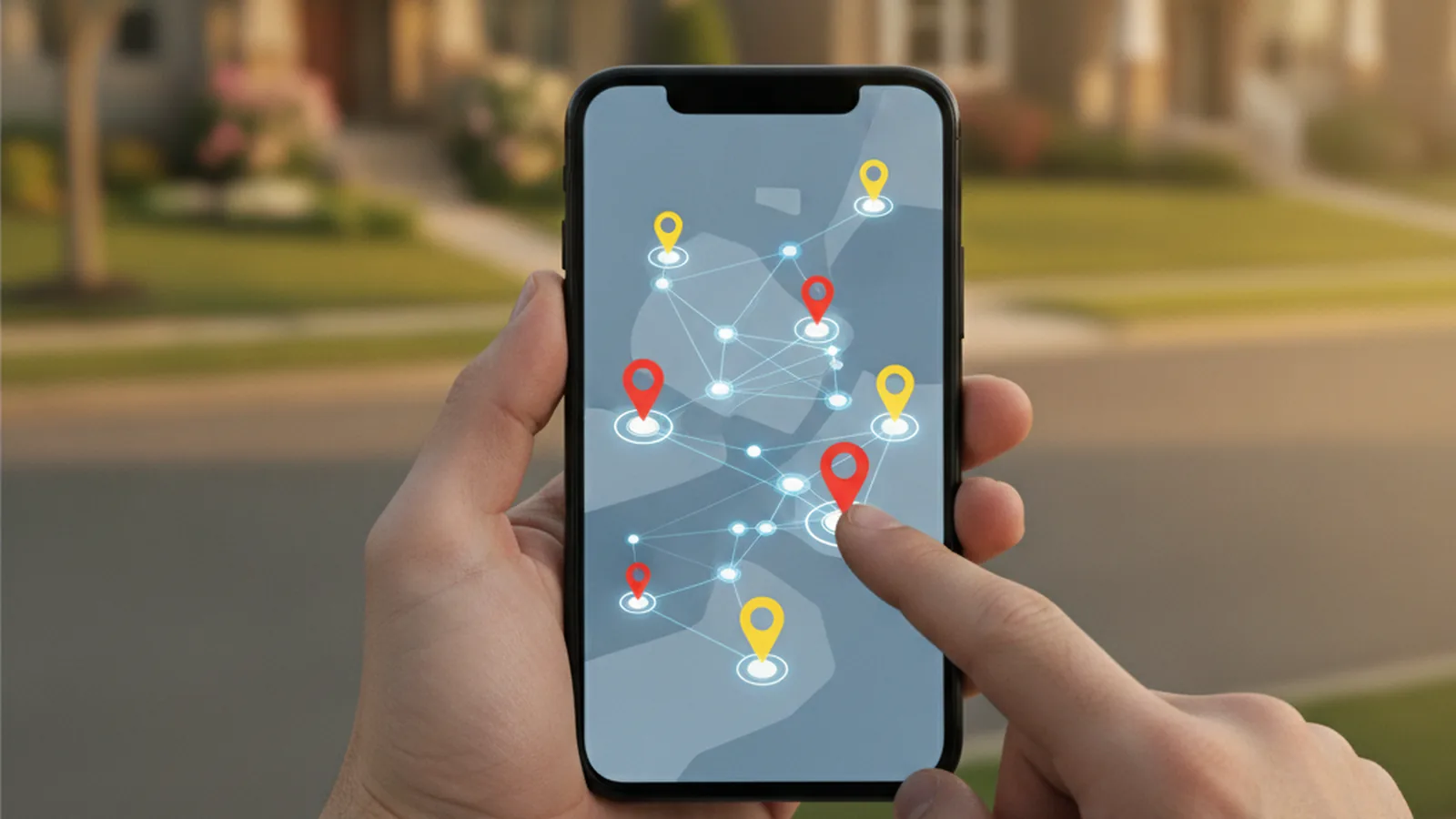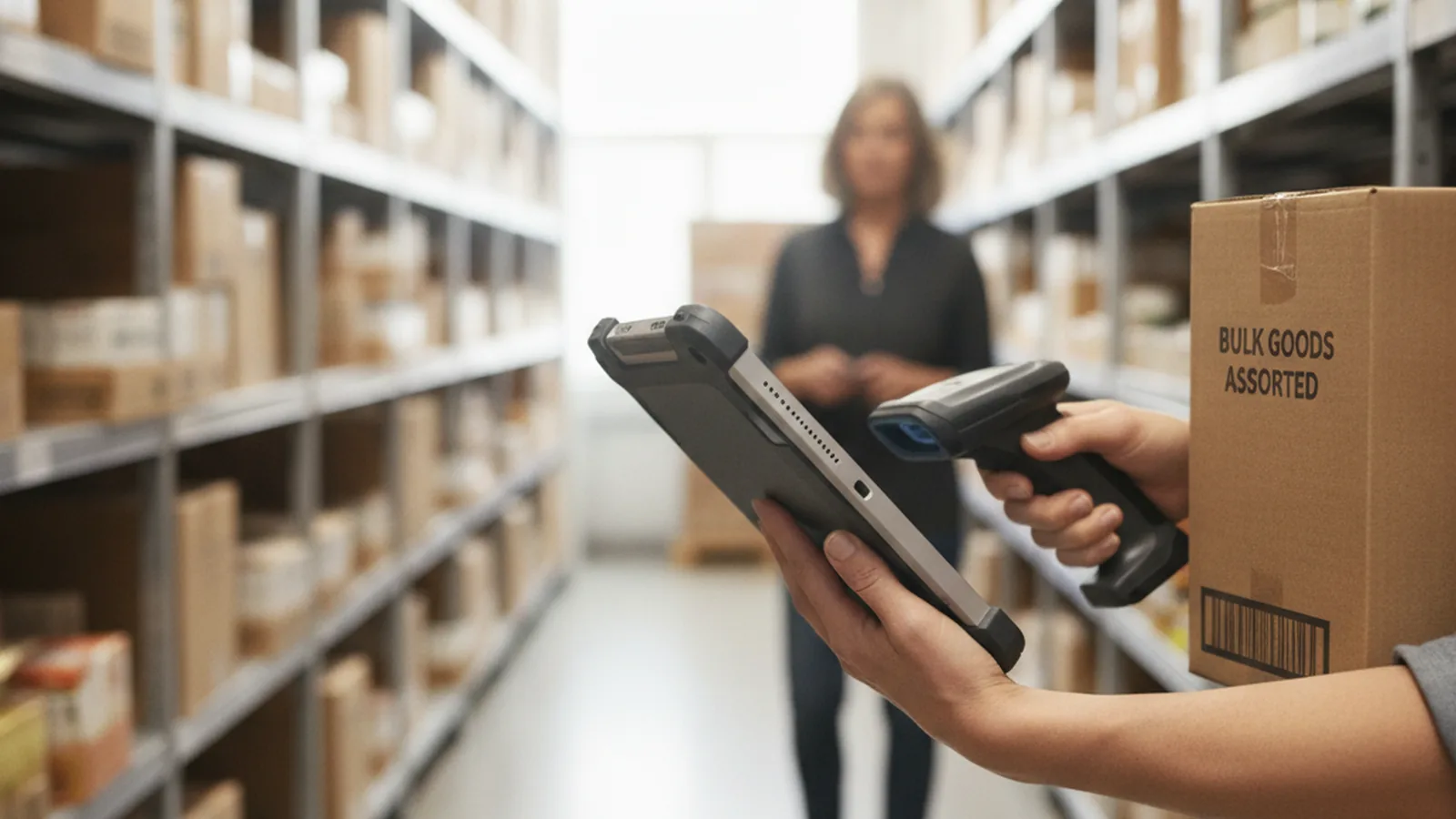
An order-taking app lets a B2B sales rep write a complete order during a customer visit: pick products from a catalogue, apply that customer’s prices and terms, check stock, get a signature and send the order straight to the ERP. It replaces the paper pad, the emailed spreadsheet and the evening of retyping. The right app is the one that still works in a basement stockroom with no signal.
- Five features carry the daily load: customer pricing, fast product search, offline mode, reorder from history, ERP sync
- Offline-first and conflict rules decide whether order data can be trusted
- Buy a product first; build a custom app when your order flow or hardware does not fit any product
Wholesale and distribution still sell face to face. A rep walks into a grocery store, a hardware shop or a restaurant kitchen, checks the shelves, talks to the buyer and writes the order. The weak point is what happens next. An order scribbled on a pad or typed into a spreadsheet has to be re-keyed at the office, often the next morning. Prices are wrong because the rep used last quarter’s list, items are out of stock and nobody knew, and the customer gets a call two days later to say half the order cannot ship.
An order-taking app closes that gap by making the rep’s device the point of order entry. For most distributors a ready-made product is the sensible start. Teams with unusual flows, such as van sales with on-board printing, route accounting or scanner-heavy shelf audits, often get more from an app shaped around their own process, and because most rugged scanners and field tablets run Android, that usually means native Android app development on top of the ERP the business already uses. This guide covers both routes.
Below: what an order-taking app is and how it differs from a CRM, the six steps from handshake to ERP, the features that matter, offline sync, a device comparison, the build-or-buy decision, a selection checklist, the metrics to watch and a 30-day rollout plan.
What is an order-taking app?
An order-taking app, also called sales rep order entry software or a mobile ordering app, is software that field and inside sales reps use to create B2B orders on a phone or tablet while they are with the customer. It holds the product catalogue, customer accounts with their price lists and payment terms, stock levels and order history, and it sends finished orders to the back office without retyping.
The typical users are wholesale distributors and manufacturers that sell through reps: food and beverage, consumer goods, building supplies, auto parts, pharma and medical supplies, apparel and gifts, and agricultural inputs. Independent rep agencies that carry several manufacturers’ lines use the same tools, as do trade show teams writing orders on the stand.
The common pattern is repeat buying. Most orders are reorders from known customers with negotiated prices, so speed and accuracy matter more than persuasion. A rep who can write a 40-line reorder in three minutes, with correct prices, has more time to sell the new line.
How is an order-taking app different from a CRM?
The two overlap but answer different questions. A CRM tracks relationships and the pipeline: who the contacts are, which deals are open, what was said and what happens next. An order-taking app handles the transaction itself: which SKUs, what quantity, at what price, shipped when.
| CRM | Order-taking app | |
|---|---|---|
| Core record | Contact, company, deal | Order and order line |
| Main question | Who should we talk to, and when? | What does this customer want shipped, at what price? |
| Key data | Activities, stages, notes | Catalogue, price lists, stock, terms |
| System it feeds | Sales reporting and marketing | ERP, warehouse and invoicing |
| Offline need | Helpful | Essential |
Many teams run both and connect them: orders flow from the app to the ERP, while order totals and visit notes land on the account in the CRM so account managers see buying patterns. If you are setting up the CRM side, start with how to structure accounts in a CRM database; for reps who mostly manage relationships rather than write orders, a mobile CRM may be all they need.
How does an order get from the counter to the ERP?
A well-built app turns a visit into a confirmed order in six steps. Use this sequence as a test script when you compare products.
- Pull up the customer. The rep opens the account and sees ship-to addresses, price list, credit status, open invoices and the last few orders.
- Find products fast. Search by name, SKU or category, scan a shelf barcode, or start from a saved order guide for that account.
- Add lines with live pricing. Each line shows the customer’s contract price, any active promotion, the minimum order quantity and stock at the right warehouse.
- Review with the buyer. The rep shows the order on screen, adjusts quantities, applies an approved discount and adds delivery notes.
- Confirm before leaving. The buyer signs on the screen or approves by email, and the customer receives a copy of the order immediately.
- Submit to the ERP. The order syncs to the back office, gets an order number, and status updates such as picked, shipped and invoiced flow back to the app.
If any step forces the rep to leave the app, call the office or write something down, that is where errors and delays will come from.
Which features does an order-taking app need?
Vendor pages list dozens of features. In the field, a handful do most of the work. Test these first, on a real device, in a real store.
| Feature | Why it matters on a visit | How to test it |
|---|---|---|
| Customer-specific pricing and terms | Wrong prices cause credit notes and disputes | Open two accounts on different price lists and compare the same SKU |
| Fast product search and barcode scanning | Catalogues run to thousands of SKUs | Find ten items by partial name, SKU and scan; time it |
| Reorder from history and order guides | Most B2B orders repeat last week’s | Copy the last order, change three quantities, submit |
| Offline order entry | Stockrooms, rural routes and cold stores kill the signal | Airplane mode, write a full order, reconnect, check the ERP |
| Stock visibility | Prevents promising what cannot ship | Check that available quantity matches the ERP for five items |
| ERP and accounting sync | Removes retyping and keeps status current | Submit an order and trace it into the ERP without manual steps |
Beyond the core six, the extras that pay off most often are: e-signature and an instant order copy for the customer, promotions and deal rules that apply automatically, minimum order and case-pack checks, credit-hold warnings, photo capture for shelf audits, visit notes and route planning. Several vendors now add suggested orders based on purchase history; treat that as a helpful prompt for the rep, not a replacement for their judgement on the shelf.
Can sales reps take orders offline?
They should be able to, but “offline” means different things to different vendors.
- Read-only cache. The rep can browse the catalogue and see recent orders, but cannot submit a new order without a connection. That fails in exactly the places reps spend their day.
- Offline-first. The full catalogue, the rep’s accounts, their price lists and recent history live on the device. The rep writes and confirms complete orders, which queue and sync when the signal returns.
Offline-first is what field ordering needs, and it raises three questions to put to every vendor:
- How fresh are prices and stock? Ask how often the device syncs in the background and what the rep sees when cached stock might be out of date. A clear “stock as of 07:40” label is better than a silent guess.
- What happens on conflict? If the office changes a price or a customer is put on credit hold while the rep is offline, the order should be flagged for review, not silently accepted or rejected.
- How big is the sync? Catalogues with images can run to gigabytes. Check whether images download over Wi-Fi only and whether a new device can be ready in minutes, not hours.
The same logic applies to the CRM link. Decide in advance what travels where: orders and order status between the app and the ERP; order totals, visit notes and follow-up tasks to the CRM. Our CRM integration guide explains how to map fields and avoid duplicate accounts when several systems share customer data.
Phone, tablet or rugged device?
Device choice shapes the app more than most buyers expect. A rep showing a catalogue to a buyer wants a big screen; a rep scanning 200 shelf labels a day wants a hardware scanner that survives a drop onto concrete.
| Rep’s own smartphone | Consumer tablet | Rugged Android device | |
|---|---|---|---|
| Best for | Quick reorders, small catalogues | Showing catalogues and new lines to buyers | Van sales, shelf audits, cold and dusty sites |
| Barcode scanning | Camera, slower in poor light | Camera | Built-in laser or imager scanner |
| Durability | Low, needs a case | Low to medium | Drop and water resistant |
| Battery | Shared with personal use | Good | Hot-swappable on many models |
| Management | BYOD policy and work profile | Company-owned, MDM | Company-owned, MDM, kiosk mode |
| App platform | iOS and Android | Mostly iPad or Android | Almost always Android |
Mixed fleets are common: tablets for key account reps, rugged handhelds for van and merchandising teams. Check that the app supports every device you plan to use, including the hardware scanner, Bluetooth receipt printers and payment terminals if reps collect money on the route. Google’s Android Enterprise Recommended list is a useful starting point for devices that receive security updates for several years and work with standard device management tools.
Should you buy an order-taking app or build your own?
Buying is faster and cheaper for most teams, and the product market is mature. A custom app makes sense when the product forces workarounds that cost more than a build. Typical signs:
- Reps finish part of every visit on paper or in a second app: delivery receipts, returns, cash collection, temperature logs.
- Your pricing logic, such as tiered rebates, deal stacking or consignment, cannot be configured in any product you have tested.
- Hardware integration matters: built-in scanners, receipt and label printers, scales, payment terminals.
- You run van sales or direct store delivery, where the order, the stock on the truck and the invoice all happen on the device at once.
- A large rep team pays more in seat fees over three years than a build plus maintenance would cost.
If you build, keep the ERP as the system of record and make the app a thin, offline-first front end that reads and writes through the ERP’s API. Start with one flow, usually reorder plus new order with signature, and add returns, collections or audits once reps use it daily. The full build-versus-buy economics, including how to score the options, are in our build vs buy decision guide; the same framework works for order entry.
How do you choose an order-taking app?
- Ride along for a day. List every action a rep takes from the first call to the last order. That list is your requirement sheet.
- Write down your ERP and pricing rules. Price lists, promotions, minimums, credit holds and units of measure. Vendors should show your rules working, not similar ones.
- List what must work offline. Usually the catalogue, accounts, pricing, order entry and signatures.
- Shortlist two or three apps. Include one that integrates natively with your ERP; if your CRM offers an ordering module, test that too.
- Run a timed field test. Same reps, same customers, same devices, including your scanners. Time a reorder and a new order in each app.
- Trace orders end to end. Submit test orders offline, reconnect and confirm they arrive in the ERP with the right prices, ship-to and order status flowing back.
- Check admin work. Who updates catalogue images, price lists and promotions, and how long does it take each week?
- Price three years. Seats, setup, ERP connector fees, devices, training and the internal time to maintain data.
Which metrics show the app is working?
The case for an order-taking app is time back for selling and fewer order errors. Measure both before and after rollout, on the same routes.
| Metric | What it shows | What to do if it is weak |
|---|---|---|
| Order entry time per order | Usability and catalogue setup | Build order guides per account, tidy SKU names |
| Order-to-ERP lag | Sync reliability | Check background sync and conflict queue |
| Order error rate (credits, re-picks) | Pricing and stock accuracy | Audit price list sync, show stock timestamps |
| Lines per order and average order value | Upsell and range coverage | Surface suggested items and new lines |
| Visits per rep per day | Time saved on admin | Remove remaining paper steps |
| Share of orders via the app | Adoption | Find which reps or customers still go around it |
Salesforce’s State of Sales research keeps finding that reps spend most of their week on work other than selling. Retyping orders is one of the easiest pieces of that work to remove.
A 30-day rollout plan
- Days 1–5: ride along with two reps, document pricing and ERP rules, decide which devices reps will use and what must work offline.
- Days 6–10: shortlist and run the timed field test. Pick one app.
- Days 11–15: load the catalogue with clean names and images, connect the ERP, build order guides for the top customers and test end to end, offline included.
- Days 16–20: pilot with two or three reps on real routes. Keep one shared list of every problem and fix the top five.
- Days 21–25: roll out to the team with a short walkthrough on their own devices, in a customer’s store if possible. Tell key customers they will now sign on screen and get an instant order copy.
- Days 26–30: review the metrics above against the baseline. Any step still on paper is the next candidate for configuration or a custom build. For reps who also canvass new accounts, see our guide to door-to-door sales apps.
Questions
What is an order-taking app for sales reps?
It is mobile software that lets B2B reps write complete orders during a customer visit, using the customer’s own prices, live or cached stock and order history, and send them straight to the ERP without retyping.
Can sales reps enter orders without an internet connection?
With an offline-first app, yes. The catalogue, accounts and price lists are stored on the device, orders are written and signed offline and sync when the connection returns. Test it in airplane mode before you buy; some apps only show cached data.
Is an order-taking app the same as a CRM?
No. A CRM manages contacts, deals and activities; an order-taking app manages order lines, prices and stock and feeds the ERP. Many teams connect the two so order totals and visit notes appear on the CRM account.
Which devices work best for order taking?
Tablets suit reps who show catalogues to buyers, smartphones suit quick reorders, and rugged Android handhelds with built-in scanners suit van sales, shelf audits and harsh sites. Many teams run a mixed fleet.
When should a distributor build its own order-taking app?
When reps keep finishing visits on paper or in a second app, when pricing or van sales logic cannot be configured in any product, when hardware such as scanners and printers must be integrated, or when seat fees for a large team exceed the cost of a build and its maintenance.